User Guide
A step-by-step guide to all DearPlay features.
Table of Contents
1. App Structure Overview
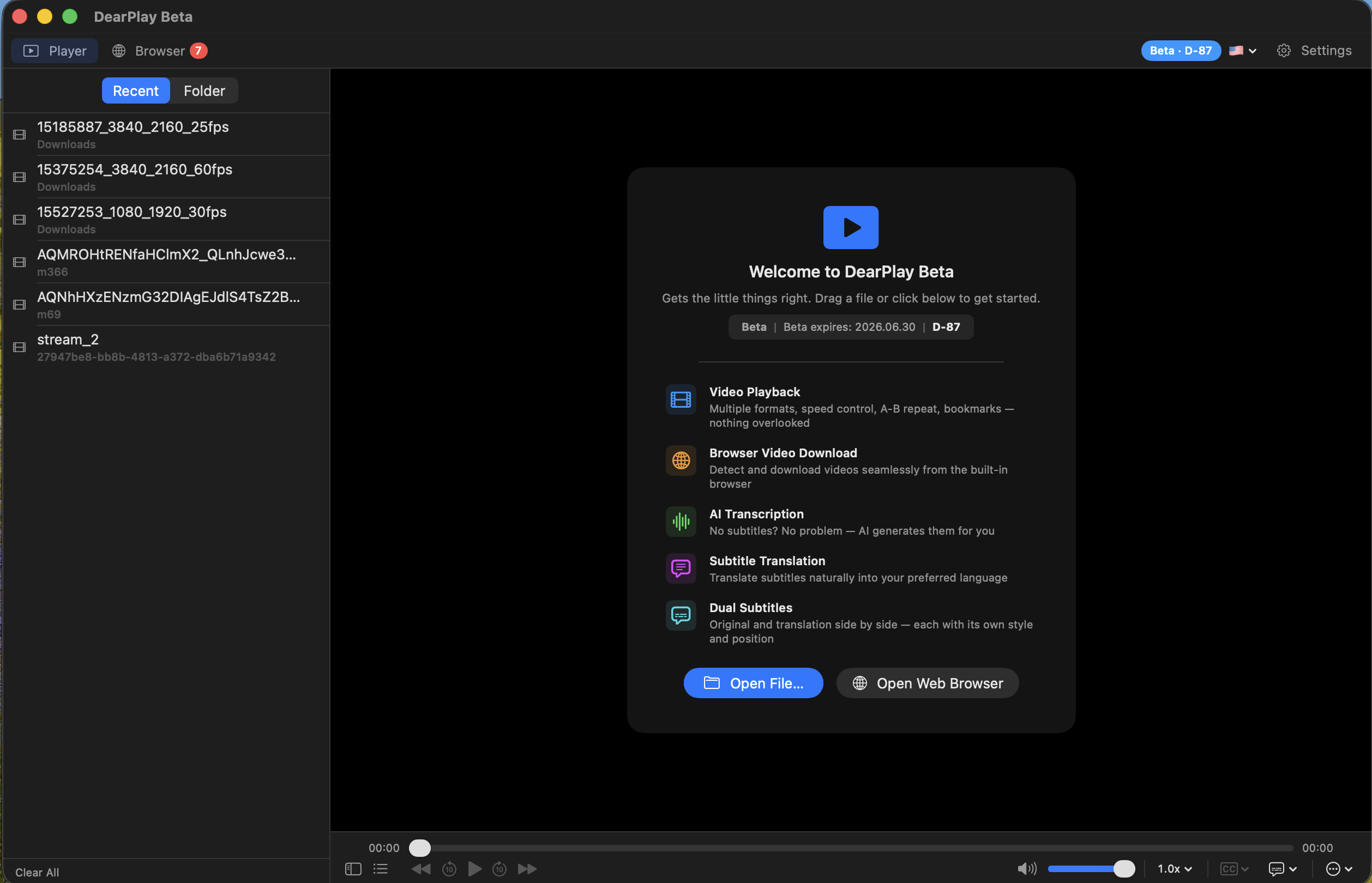
DearPlay is organized into two main modes: Player mode and Browser mode. You can switch between them using the toggle bar at the top.
Player Mode
- Left sidebar: File library — recent files, favorites, local folder browsing (multi-select supported)
- Center: Video playback area — includes subtitle overlay
- Right sidebar: Playlist (saved playlist management + playback queue) or Transcription panel (toggleable)
- Bottom: Control bar — playback, seek bar, volume, speed, subtitles, download

Browser Mode
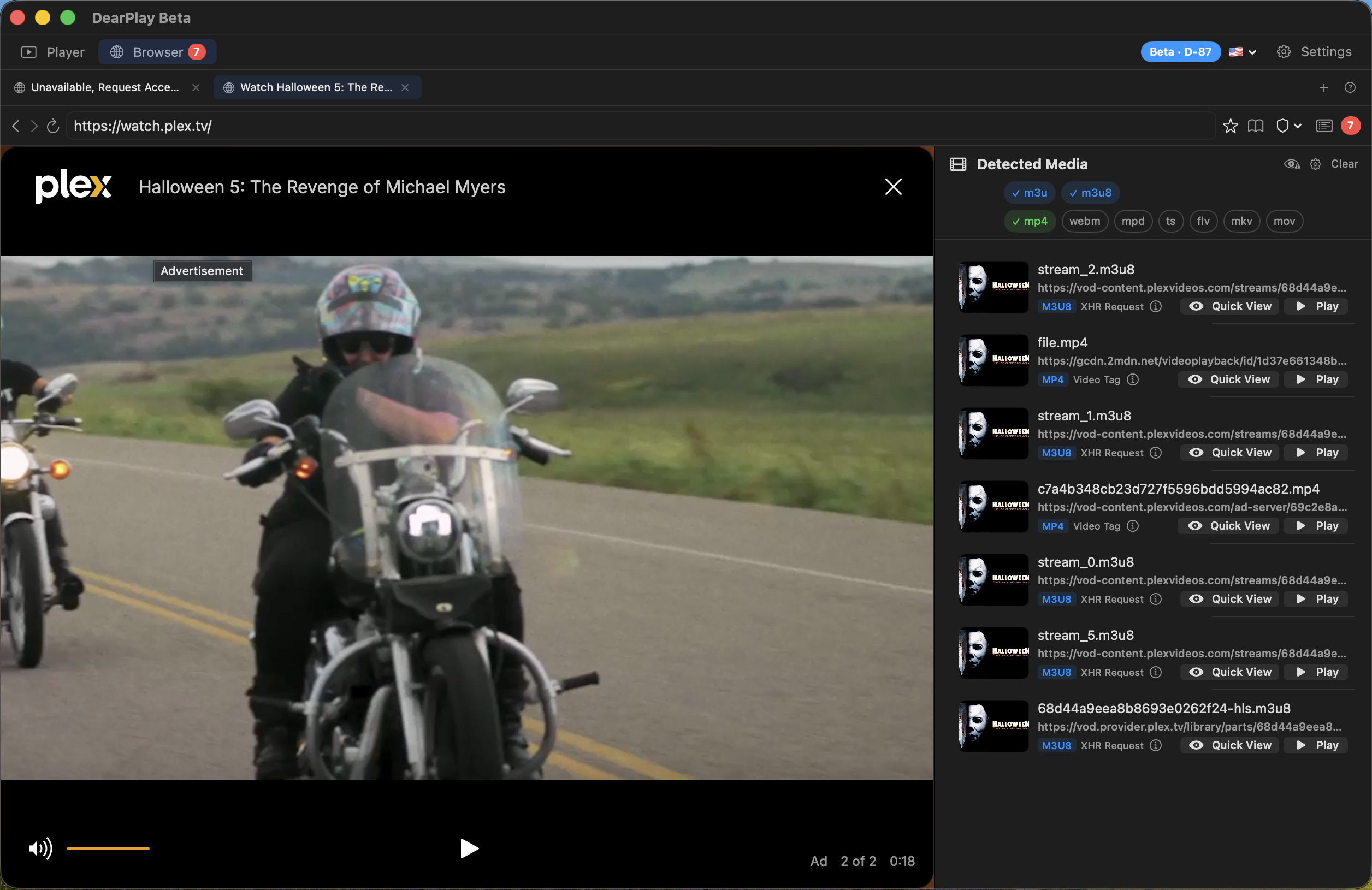
- Browse websites using the built-in web browser
- Detected media list is displayed on the right side
- Multi-tab support, back/forward navigation, refresh, bookmarks
2. Video Playback
Opening Files
- File menu: File > Open (⌘O)
- Open URL: File > Open URL (⌘U) — enter a streaming URL directly
- Drag and drop: Drag video files into the app window
- Library: Browse folders from the left sidebar
Playback Controls
- Play/Pause: Space or the center button
- Skip 10 seconds forward/back: → / ←
- Skip 3 seconds forward/back: Shift+→ / Shift+←
- Skip 30 seconds forward/back: ⌘+→ / ⌘+←
- Previous/Next track: ⌘⌥← / ⌘⌥→
Variable Speed
Select from 0.5x, 0.75x, 1.0x, 1.25x, 1.5x, or 2.0x using the speed picker in the bottom control bar.
A-B Loop Repeat
Loop a specific section indefinitely:
- Press R at the desired start point to set point A
- Press R at the desired end point to set point B and start looping
- Press R again to cancel the loop
The looping section is highlighted in blue on the seek bar.
Bookmarks
- Press B to create a bookmark at the current position
- Displayed as orange markers on the seek bar
- Right-click to edit the name or delete
Video Adjustments
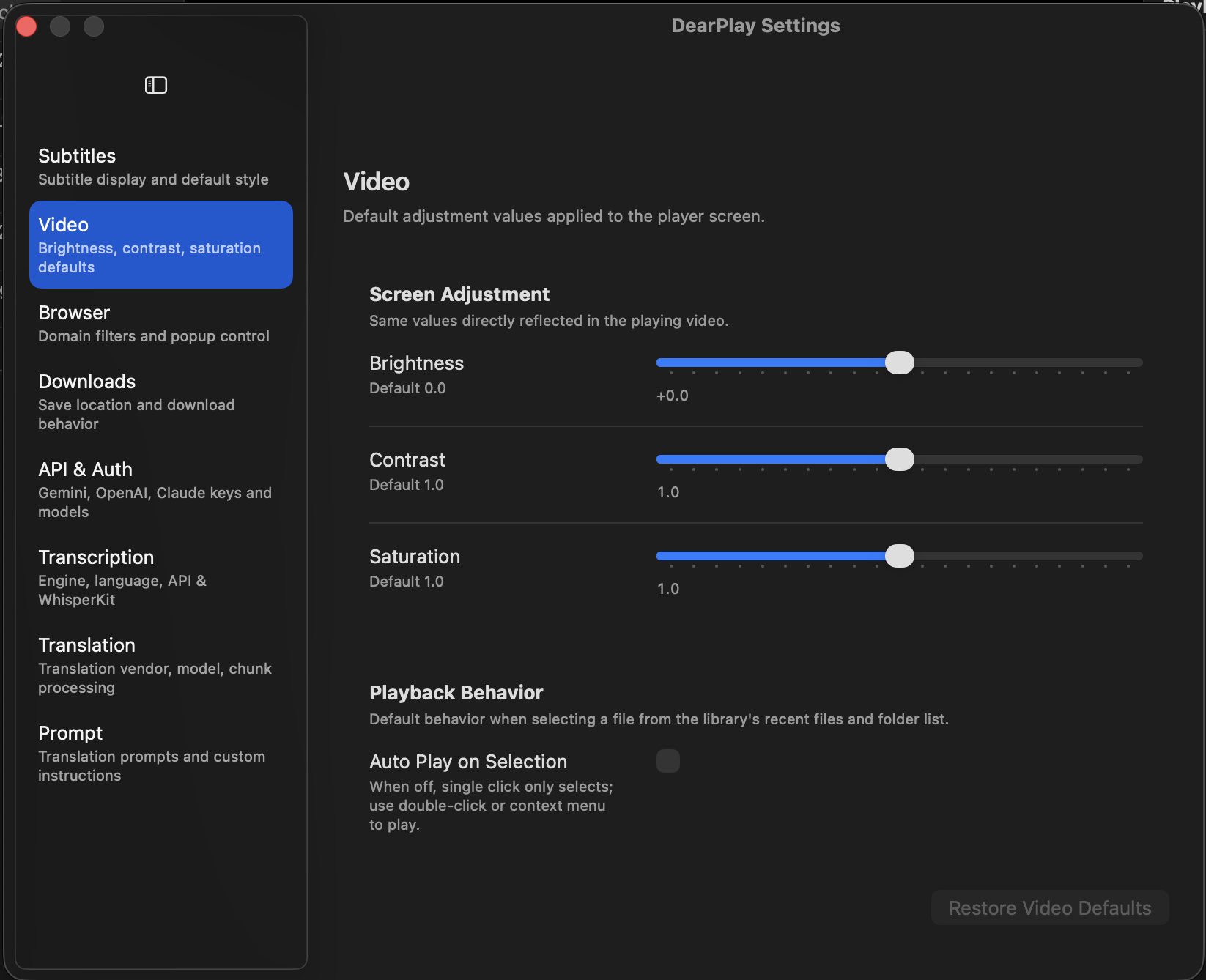
Open the Video Adjustments panel from the Playback menu to adjust brightness, contrast, and saturation in real time.
- Aspect ratio: Five modes — Fit, Fill Width, Fill Height, Fill, Stretch
- Fullscreen: ⌘F
Resume Playback
When you close a video, the last playback position is automatically saved. The next time you open the same file, playback resumes from where you left off.
3. Playlists & Favorites
DearPlay separates the playback queue (the currently playing list) from saved playlists (user-curated collections) for flexible management.
Favorites
Add frequently watched videos to your favorites for quick access.
- Method 1: Right-click a file in the left library sidebar and select "Add to Favorites"
- Method 2: Toggle the currently playing video as a favorite with ⌘D
- View: Access all favorites from the "Favorites" tab in the left library sidebar
- Indicator: Favorited files display a star icon in the folder browser
Creating Saved Playlists
Create multiple named playlists to organize your videos.
- Click the "New Playlist" button at the bottom of the right playlist sidebar
- Enter a name to create the playlist
- Right-click a file in the library, select "Add to Playlist," and choose the desired playlist
Batch Add with Multi-Select
Select multiple files at once from the folder browser and favorites to add them in bulk.
- ⇧+Click: Range select (consecutive files)
- ⌘+Click: Individual toggle (non-consecutive files)
- After selecting, click the "Add Selected" button at the bottom and choose the target playlist
Right-Click Context Menu
Right-clicking any file in Recent Files, Favorites, or the folder browser shows the following menu:
- Add to/Remove from Favorites — toggle favorites
- Now Playing — add to the current playback queue
- Add to Playlist — choose from existing playlists in the submenu
- Create Playlist — create a new playlist with the selected file
Playlist Management
Tap a saved playlist in the right playlist sidebar to open its detail view.
- Play All: Load the entire list into the playback queue using the "Play All" button at the top
- Reorder: Drag items to rearrange the order
- Delete: Swipe or press Delete to remove items
- Rename/Delete: Right-click a playlist to rename or delete it (Favorites cannot be deleted)
Playback Queue (Now Playing)
The currently playing list can be viewed from the "Now Playing" item at the top of the playlist sidebar.
- Repeat modes: Off, Repeat All, Repeat One
- Shuffle mode: Random playback order
- Reorder and remove items as needed
4. Subtitle Management
Loading Subtitles
- External files: Drag .srt or .vtt files into the app, or load them from the menu
- Embedded subtitles: Subtitle tracks embedded in the video file are automatically detected
- AI-generated: Automatically generated via speech recognition (see below)
Dual Subtitles
Display two subtitle tracks simultaneously:
- Primary subtitle: Bottom of the video (default position 88%)
- Secondary subtitle: Top of the video (default position 15%)
- Each subtitle's style can be configured independently
When dual subtitles are active, a "2" badge appears on the CC icon in the bottom control bar.

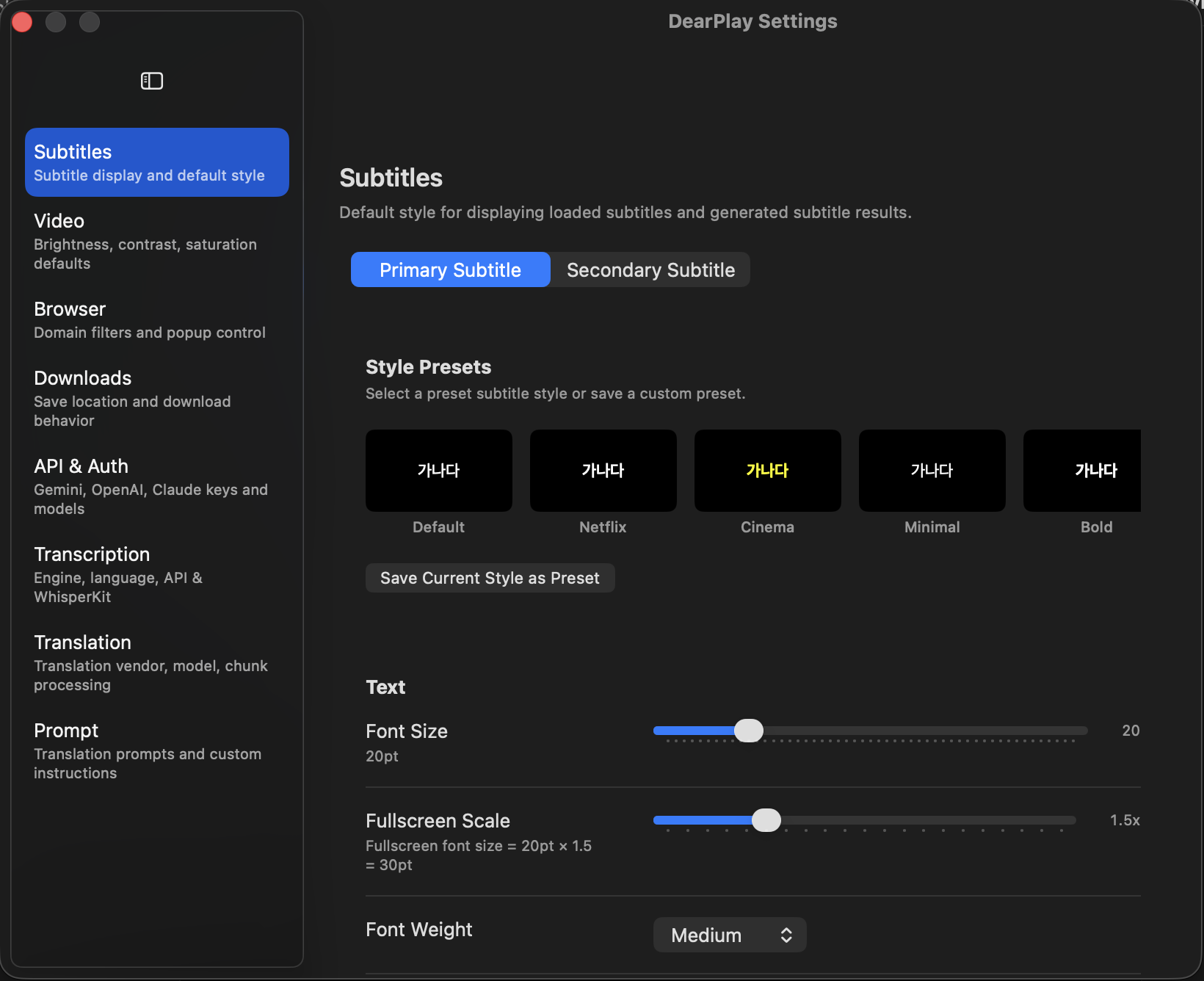
Subtitle Style Customization
Fine-tune subtitle appearance in Settings > Subtitles:
- Presets: Default, Netflix, Cinema, Minimal, Bold, Outline, Dark
- Adjustable options: Font size (8–72pt), color, background color and opacity, stroke, shadow, corner radius
- Position: Drag subtitles to the desired vertical position
- Fullscreen scale: 1.0x to 3.0x font scaling
Exporting Subtitles
Export generated subtitles in SRT, VTT, or JSON format.
5. AI Speech Recognition (Subtitle Generation)
Analyze the audio in a video and automatically generate a subtitle file.
How to Use
- With a video loaded or playing, press ⌘⇧T to open the transcription panel
- Select a language (Korean, English, Japanese, Chinese)
- Select an AI engine
- Click the "Start Transcription" button
Processing Pipeline
The transcription process proceeds automatically through the following steps:
- Audio extraction: Extract 16kHz WAV audio from the video
- Voice Activity Detection (VAD): Identify sections containing speech using Silero VAD
- Chunk splitting: Split into segments of the configured length (default 180 seconds), respecting VAD boundaries
- Parallel transcription: Transcribe up to 3 chunks simultaneously
- Result merging: Align timestamps and remove duplicates
- Apply subtitles: Automatically apply the generated subtitles to the player
Supported Engines
- WhisperKit (Local): Process directly on your Mac without internet. No API key required. Model sizes: Base (~150MB) to Large V3 (~1.5GB)
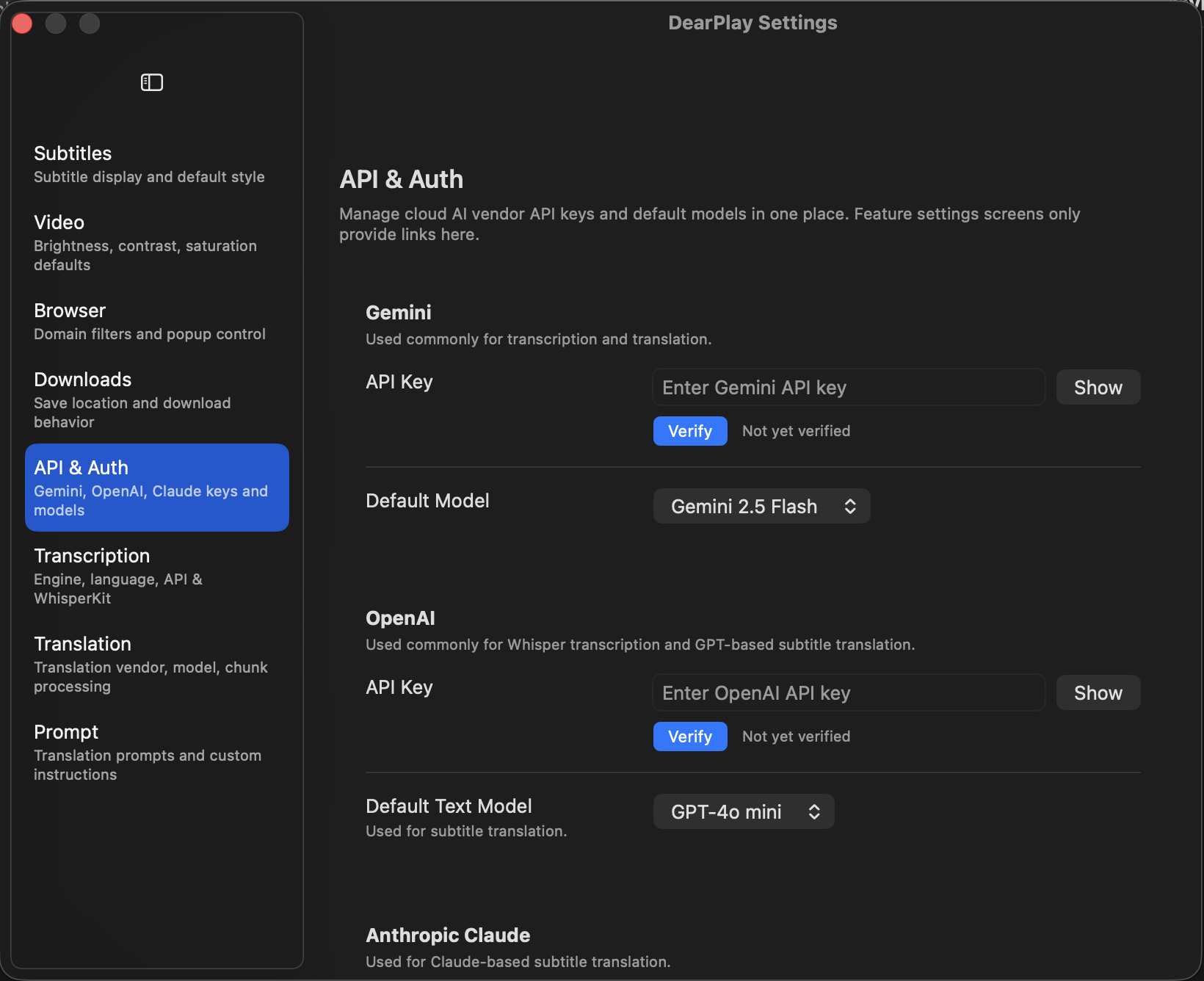
- Gemini: Google Cloud-based. Fast and accurate. API key required
- OpenAI Whisper: OpenAI cloud-based. API key required
Configuration Options
- Chunk length: 60–600 seconds (default 180 seconds)
- Parallel workers: 1–3 (default 3)
- Custom prompt: Add technical terms or proper nouns to the prompt to improve accuracy

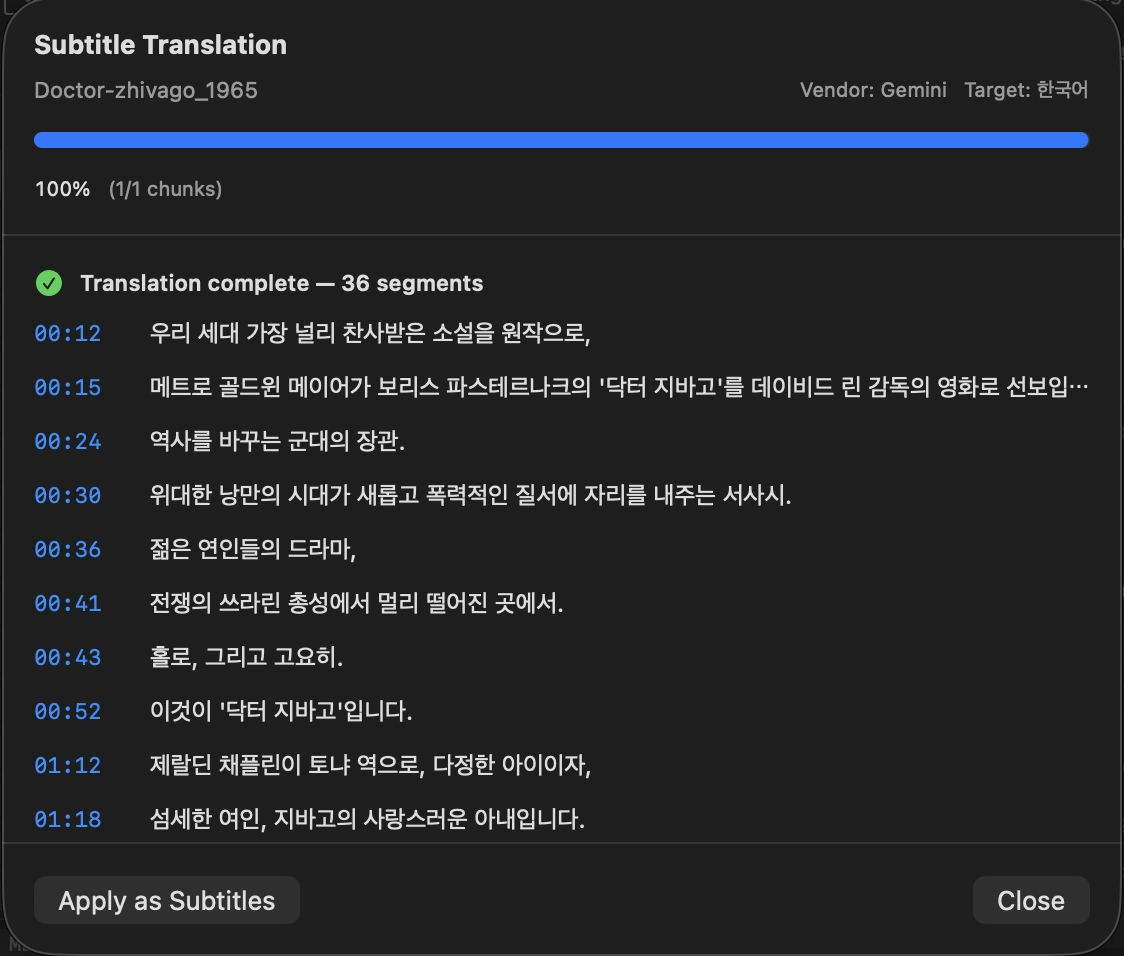
6. AI Subtitle Translation
Translate existing subtitles (SRT/VTT) into another language.
How to Use
- With subtitles loaded, start translation from the menu or the transcription panel
- Select the target language (Korean, English, Japanese, Chinese)
- Select an AI engine
Supported Engines
- Gemini 2.5 Flash/Pro: Fast and cost-efficient
- GPT-4o / GPT-4o mini: High translation quality
- Claude Sonnet 4 / Opus 4: Natural sentence generation
Advanced Settings
- Chunk length: 60–600 seconds (default 240 seconds)
- Parallel workers: 1–2 (default 2)
- Custom prompt: Specify translation tone or technical terminology
- Preserve line breaks: Maintain the original subtitle's line break structure in the translation
7. Built-in Web Browser
Browse the web within DearPlay and instantly play or download any videos you find.
Basic Usage
- Press ⌘⇧W to switch to browser mode
- Enter a URL or search term in the address bar
- Multi-tab support: Click the + button to open a new tab
Automatic Media Detection
Media is automatically detected when you visit a webpage:
- HTML5 <video> and <audio> tags
- XHR/Fetch network request interception
- JW Player instance detection
- data-* attribute scanning
- Recursive iframe scanning up to 3 levels deep
Detected media appears as a list in the right panel. Click an item to play it directly in DearPlay.
Popup Management
- Popups are blocked by default
- You can set allow/block rules for specific domains
- Manage popup rules in Settings > Browser
8. Stream Download
Download HLS/M3U8 streams or direct video URLs.
HLS/M3U8 Download
- When an HLS stream is detected in the browser, the download icon becomes active
- Click the download button and select the quality/bitrate (Variant Selection)
- TS segments are downloaded in parallel chunks
- After all segments are downloaded, they are automatically merged into a single file
Technical Details
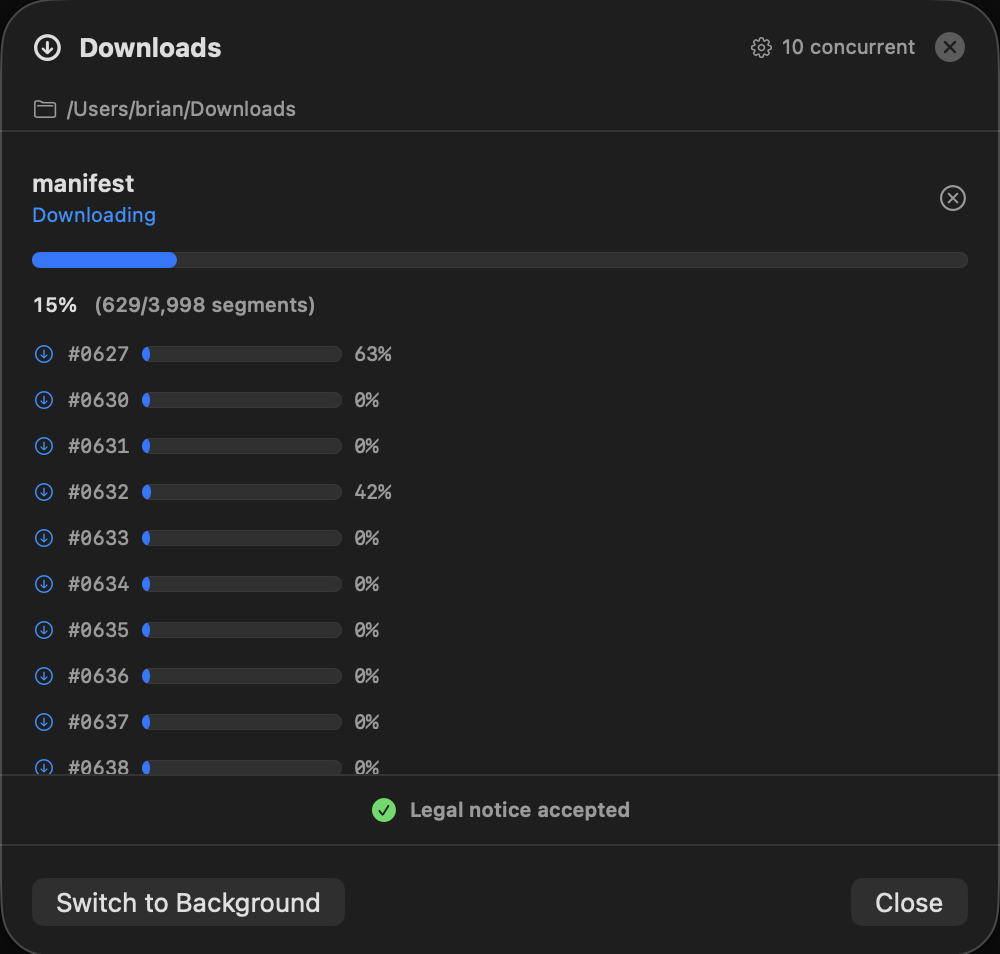
- Parallel download: Up to 10 segments downloaded simultaneously
- AES-128 decryption: Encrypted HLS streams are handled automatically
- TS merging: Automatic concatenation after download completes
- Cookie/header passthrough: Authentication info from the browser session is forwarded to the download
Download Manager
Press ⌘⇧D to open the Download Manager window. Monitor the real-time status of active downloads and retry any failed items.
9. Settings
The Settings window is organized into 8 tabs:
- Subtitles: Subtitle style presets and customization
- Video: Video adjustments, aspect ratio
- Browser: Popup rules, domain management, User Agent
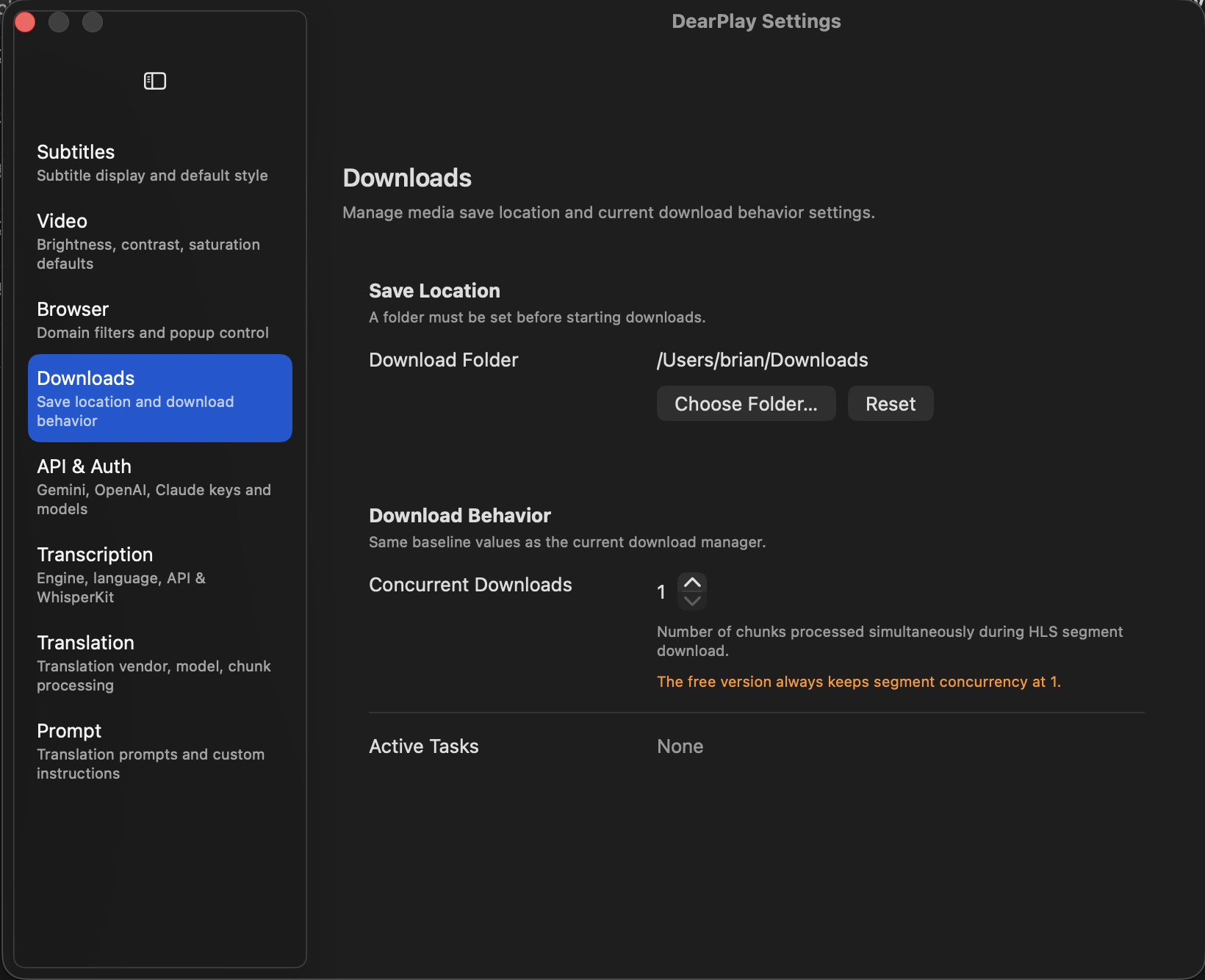
- Downloads: Download location, parallel count, segment settings
- API: AI service API key entry and verification
- Transcription: Transcription engine, chunk length, parallel count
- Translation: Translation engine, model, chunk settings
- Prompt: Custom prompts for AI transcription/translation